

💡 ZappWay use and transfer of information received from Google APIs to any
other app will adhere to Google API Services User Data
Policy,
including the Limited Use requirements.
Overview
The Google Drive integration allows you to seamlessly connect your Google Drive account to ZappWay, enabling your AI Employee to access and learn from your stored documents, spreadsheets, presentations, and other files.Supported File Types
- Documents: Google Docs, PDFs, Word files (.doc, .docx)
- Spreadsheets: Google Sheets, Excel files (.xls, .xlsx)
- Presentations: Google Slides, PowerPoint files (.ppt, .pptx)
- Text Files: Plain text (.txt), Markdown (.md)
- Images: PNG, JPEG (with OCR text extraction)
Quick Start
Features
Automatic Syncing
- Real-time Updates: Changes in Google Drive are automatically reflected
- Selective Sync: Choose specific folders or files to include
- Version Control: Latest document versions are always used
Privacy & Security
- Read-Only Access: ZappWay only reads your files, never modifies them
- OAuth 2.0: Secure authentication via Google’s official protocol
- Revocable Access: Disconnect anytime from Google account settings
File Processing
- Smart Extraction: Automatic text extraction from all supported formats
- OCR Support: Extract text from images and scanned documents
- Structure Preservation: Maintains document hierarchy and formatting
Step-by-Step Guide
1. Create a Datastore
- Go to Datastores page
- Click “Create Datastore”
- Enter a name (e.g., “Company Knowledge Base”)
- Click “Create”
2. Connect Google Drive
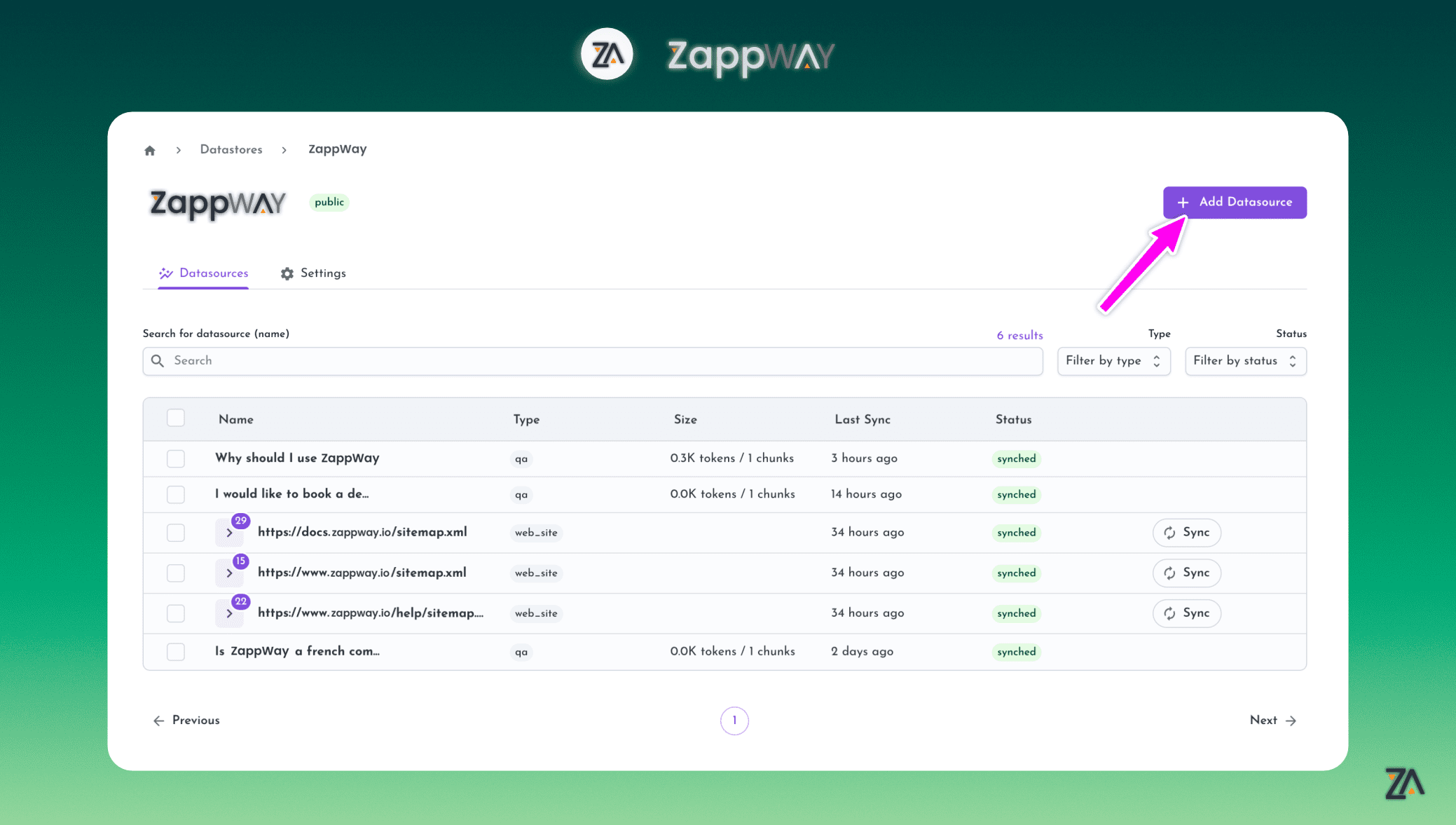
- Inside your datastore, click “Add Datasource”
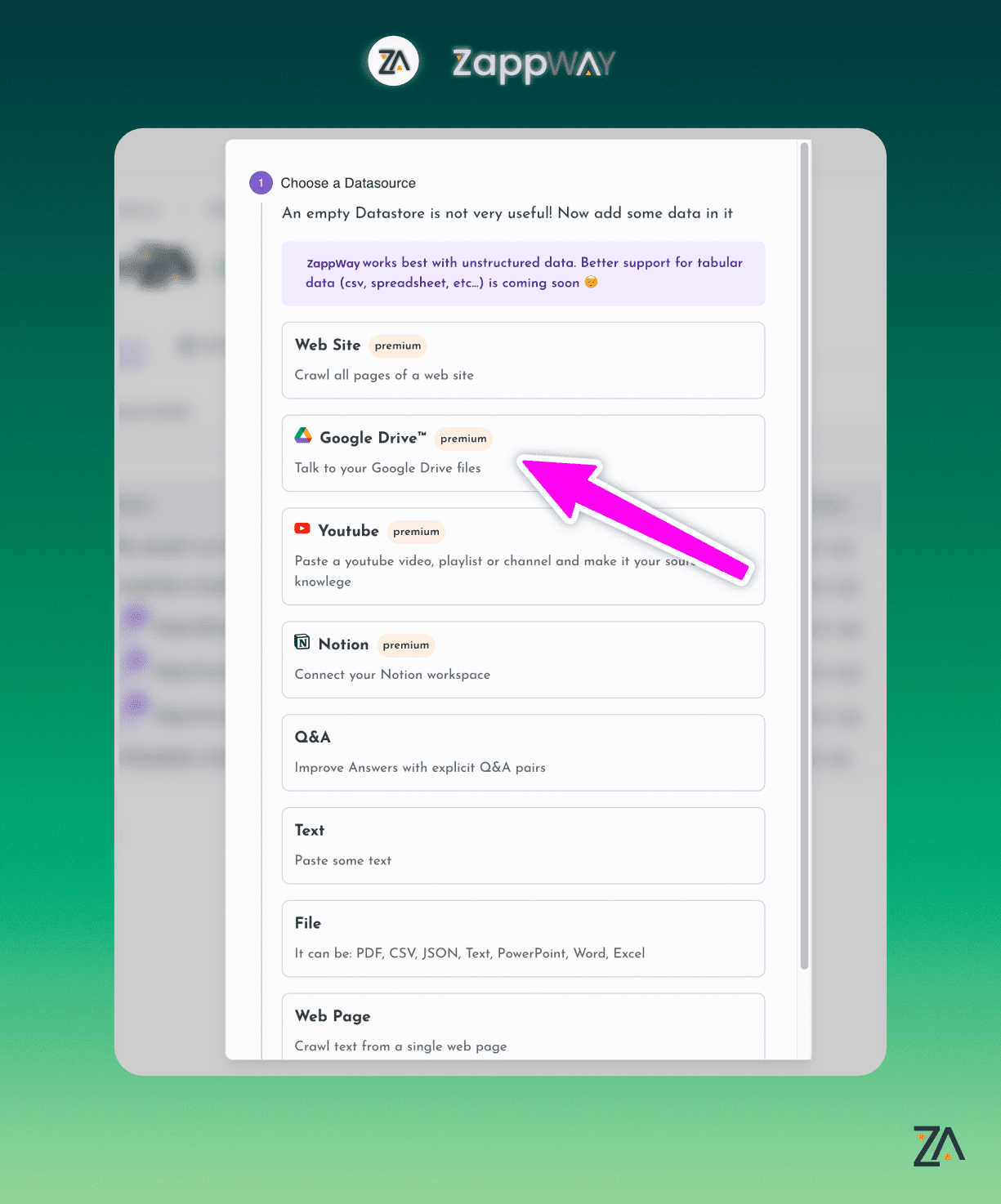
- Select “Google Drive” from the list
- Click “Connect Google Drive”
- Sign in to your Google account
- Review the permissions and click “Allow”
- View and download files from Google Drive (read-only)
- View metadata of files (name, modified date, etc.)
3. Select Content
Option A: Select Specific Files- Browse your Google Drive folders
- Check individual files you want to include
- Click “Add Selected Files”
- Navigate to a folder
- Click “Sync This Folder”
- All files in the folder (and subfolders) will be synced
- Use the search bar to find specific files
- Select from search results
- Add to your datastore
4. Configure Sync Settings
- Auto-sync: Enable to automatically sync changes (recommended)
- Sync Frequency: Choose how often to check for updates
- File Types: Filter which file types to include
- Size Limit: Set maximum file size to process
5. Process Files
- Click “Start Processing”
- Files are analyzed and indexed
- Progress bar shows processing status
- Receive notification when complete
6. Assign to AI Employee
- Go to your AI Employee settings
- Navigate to Tools section
- Enable “Datastore” tool
- Select your Google Drive datastore
- Save changes
Use Cases
Company Documentation
Train your AI on internal wikis, policies, and procedures stored in Google Drive
Customer Support
Use product manuals, FAQs, and support docs from Drive to answer customer questions
Sales Enablement
Access sales scripts, case studies, and product sheets for better lead qualification
Research & Analysis
Query research papers, reports, and datasets stored in shared drives
Best Practices
Organization
Use Clear Folder Structure
Use Clear Folder Structure
Organize files into logical folders (e.g., “Product Docs”, “Sales Materials”, “Support Articles”)
Consistent Naming
Consistent Naming
Use descriptive file names that include keywords (e.g., “Product_X_User_Guide_v2.pdf”)
Version Control
Version Control
Append version numbers or dates to file names for better tracking
Content Quality
- Keep Files Updated: Regularly review and update outdated documents
- Remove Duplicates: Delete old versions to avoid conflicting information
- Use Structured Formats: Well-formatted documents yield better AI responses
Performance
- Limit File Size: Large files (>50MB) take longer to process
- Selective Syncing: Only sync relevant folders to reduce processing time
- Regular Audits: Remove unnecessary files from synced folders
Troubleshooting
Files Not Syncing
Files Not Syncing
Solutions:
- Check if auto-sync is enabled
- Verify Google Drive permissions haven’t been revoked
- Ensure files aren’t in “Trash” or restricted folders
- Try manually triggering a sync
Processing Takes Too Long
Processing Takes Too Long
Causes:
- Large number of files queued
- Very large individual files (>50MB)
- Complex file formats (e.g., heavily formatted documents)
- Process files in smaller batches
- Reduce file size by compressing images
- Split large documents into smaller sections
Permission Denied Errors
Permission Denied Errors
Solutions:
- Re-authorize the Google Drive connection
- Check if files are in a shared drive you don’t own
- Verify you have at least “Viewer” access to the files
- Check if organization policies block third-party apps
AI Can't Find Information
AI Can't Find Information
Checklist:
- Confirm the datastore is assigned to your AI Employee
- Verify the “Datastore” tool is enabled
- Check if files were successfully processed (green checkmark)
- Ensure the information exists in the synced files
- Try rephrasing the question
Security & Compliance
Data Protection
- Encryption: All data is encrypted in transit (TLS) and at rest (AES-256)
- No Storage: Files are processed and indexed; originals remain in Google Drive
- Access Control: Only authorized users in your organization can access datastores
Compliance
- GDPR Compliant: EU data protection standards
- SOC 2: Industry-standard security controls
- HIPAA Available: Contact sales for healthcare compliance
Disconnecting
To revoke ZappWay’s access to Google Drive:- Go to Google Account Permissions
- Find “ZappWay” in the list
- Click “Remove Access”
- Existing data in ZappWay remains until manually deleted
Limits & Quotas
| Plan | Files per Datastore | Total Storage | Sync Frequency |
|---|---|---|---|
| Free | 50 | 100 MB | Daily |
| Starter | 200 | 500 MB | Hourly |
| Professional | 1,000 | 5 GB | Real-time |
| Enterprise | Unlimited | Custom | Real-time |
FAQ
Can I sync files from Shared Drives?
Can I sync files from Shared Drives?
What happens if I delete a file in Google Drive?
What happens if I delete a file in Google Drive?
The next sync will automatically remove it from your datastore, and the AI will no longer reference it.
Can multiple datastores use the same Google Drive files?
Can multiple datastores use the same Google Drive files?
Yes, you can add the same files to multiple datastores without consuming extra storage.
How long does initial sync take?
How long does initial sync take?
Depends on the number and size of files:
- 10-50 files: 1-5 minutes
- 100-500 files: 10-30 minutes
- 1000+ files: 1-2 hours
Can I sync Google Docs directly?
Can I sync Google Docs directly?
Yes! Google Docs, Sheets, and Slides are automatically exported to compatible formats during sync.
Support
Need help? Contact us:- Email: support@zappway.ai
- Live Chat: Available in dashboard
- Documentation: docs.zappway.ai
Next Steps
Create Your First AI Employee
Set up an AI Employee to use your Google Drive knowledge
Add More Datasources
Combine Google Drive with other data sources
API Integration
Programmatically manage your Google Drive datasources
Deploy Chatbot
Add your AI to your website