> ## Documentation Index
> Fetch the complete documentation index at: https://docs.zappway.ai/llms.txt
> Use this file to discover all available pages before exploring further.
# Crisp
> Integrate with Crisp live chat to combine **AI Employee** automation with human support. Let your AI handle routine inquiries while your team focuses on complex issues.
## Features
### Answer Questions
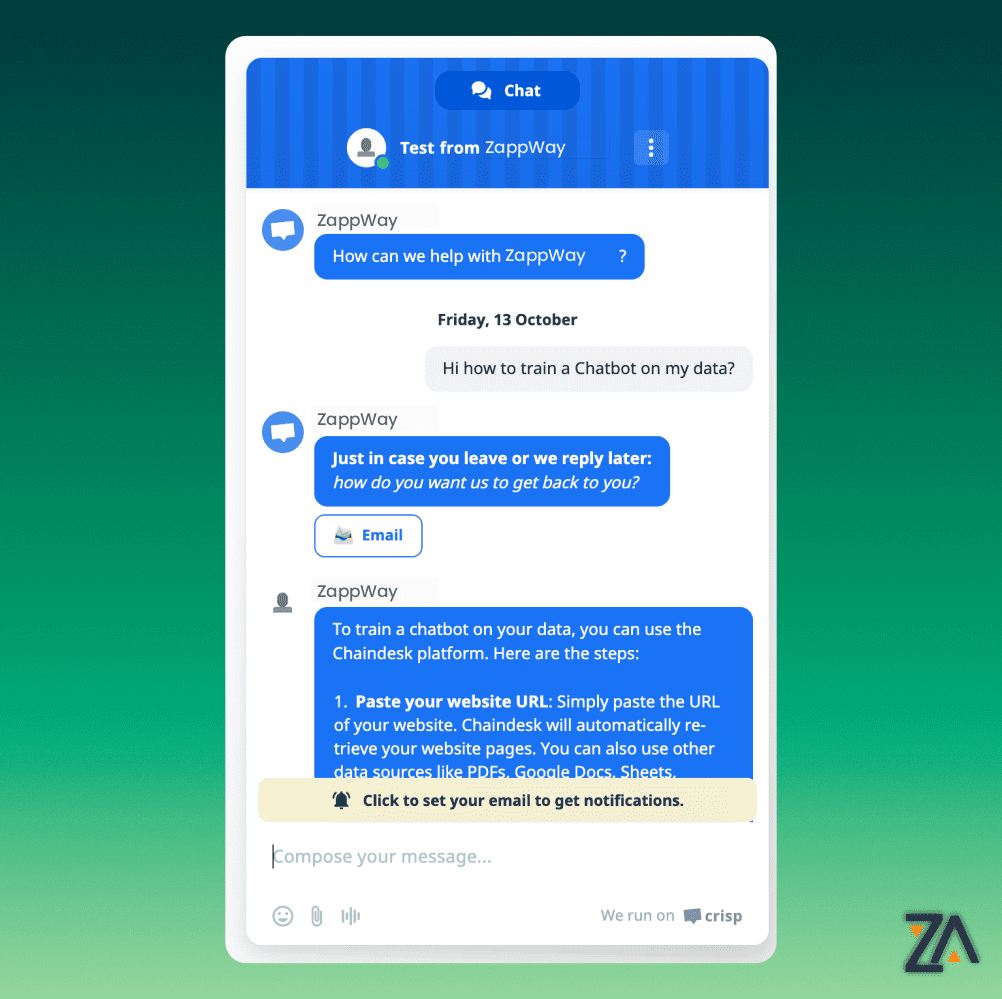
The AI Employee can answer questions related to product information or to any other data provided to the AI Employee via the ZappWay dashboard.
 ### Mark as Resolved
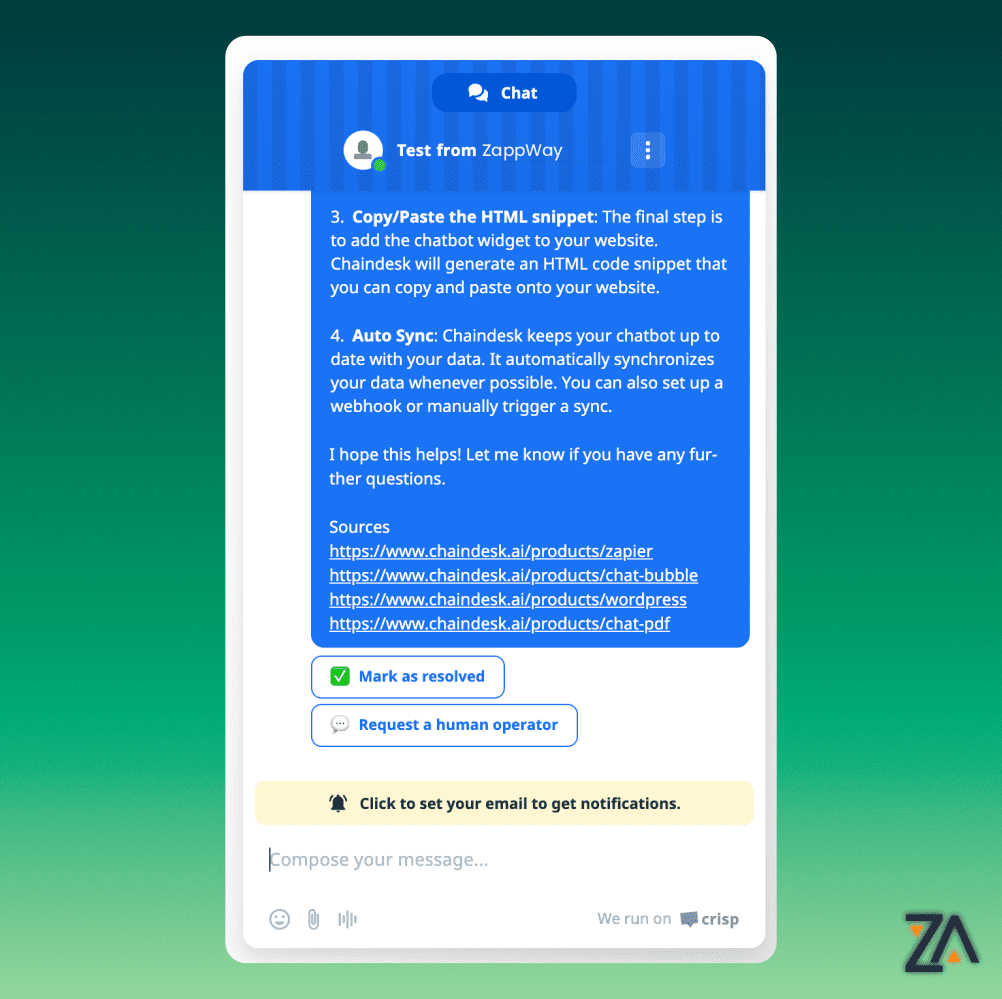
If the customer is satisfied with the answer, he can mark the conversation as resolved by clicking the corresponding button.
### Mark as Resolved
If the customer is satisfied with the answer, he can mark the conversation as resolved by clicking the corresponding button.
 ### Smart Human Handoff
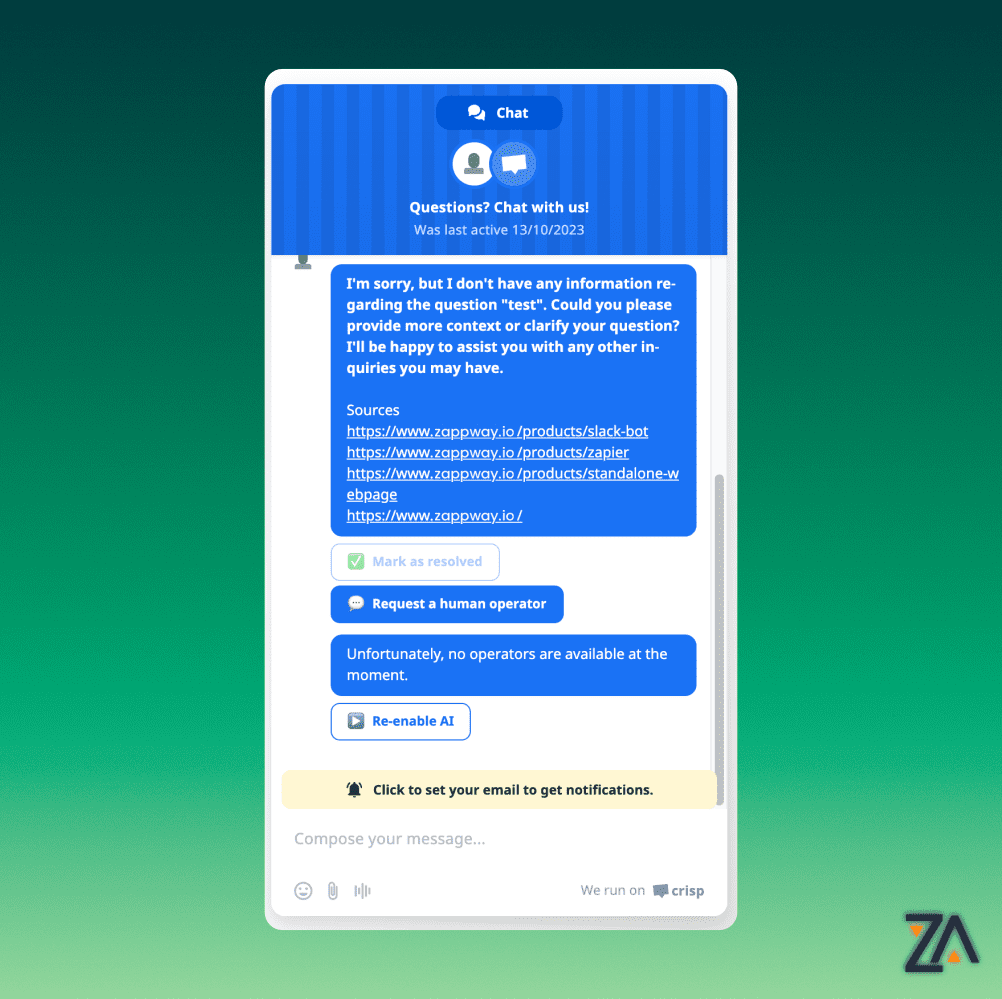
When pressing “Request a human operator” the AI Employee will notify all active operators and the AI will be disabled.
### Smart Human Handoff
When pressing “Request a human operator” the AI Employee will notify all active operators and the AI will be disabled.
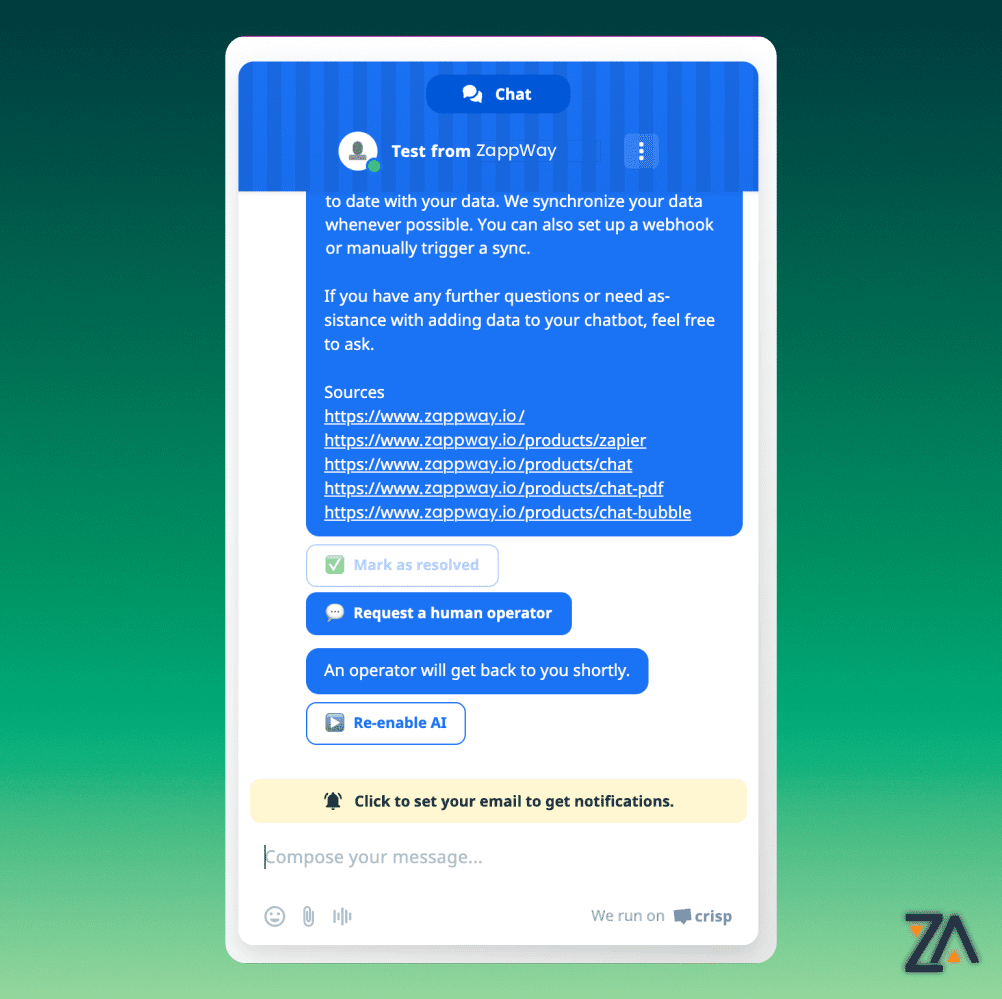 If all operators are offline, the customer will receive a message explaining the situation.
 ### How to stop the AI
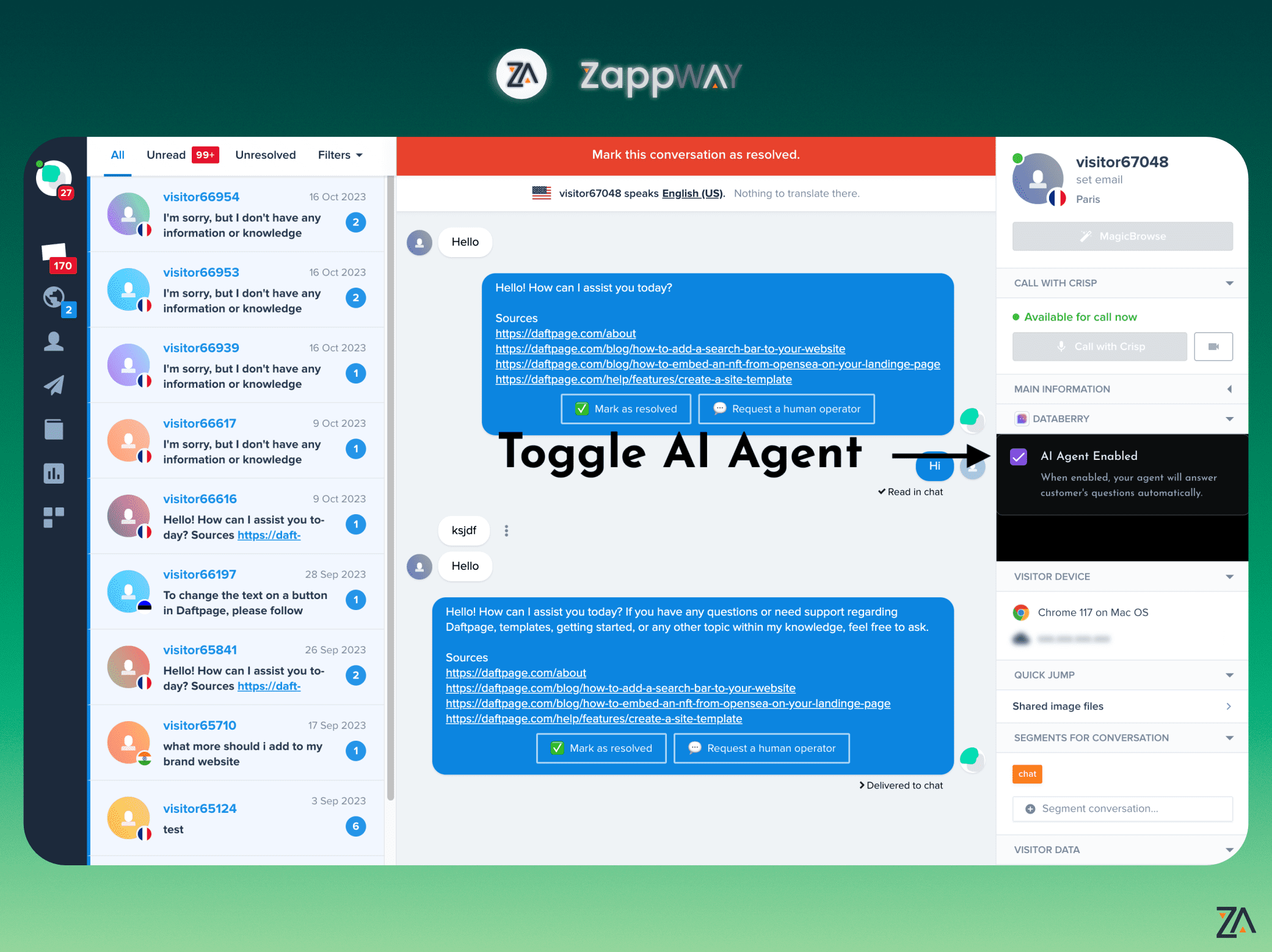
**The AI stops automatically when a human operator sends a message** to the conversation or manually when the customer clicks “Request a human operator” and some operators are online
### How to re-enable the AI
The AI will be re-enabled if the customer clicks “Re-enable AI” or if an operator enables manually the AI Employee from Crisp’s dashboard
### How to stop the AI
**The AI stops automatically when a human operator sends a message** to the conversation or manually when the customer clicks “Request a human operator” and some operators are online
### How to re-enable the AI
The AI will be re-enabled if the customer clicks “Re-enable AI” or if an operator enables manually the AI Employee from Crisp’s dashboard